Wednesday, May 7, 2014

REMOTE DESKTOP CONNECTION ERROR, AFTER 2 ACTIVE SESSIONS

Good day All,
The other day when i was working a colleague of mine pulled me and showed me a Server when tried to RDP was showing the below error...


So he started to ping  and there was ping response and he even tried with file share and it was working fine too.. So he determined that Server is online.. so he logged on to Server via ILO and he saw server is health and online..So he used the console and logged in..

He poked around could't find any problem still he was not able to RDP to server.. so he disconnected all the RDP sessions which were active and disconnected state and boom RDP started to work...
now that puzzled me too why after disconnecting sessions we were able to RDP ??????

Well now i had to replicate the issue .. So i took 2 RDP Session to same server and when i tried the 3 RDP session boom i got the same error, usually if you try a 3 rd session it should still open a connection and pop us with message saying if you want to disconnect any active user session, but this is strange as it was not going that far just failing with error "THIS COMPUTER CAN'T CONNECT TO THE REMOTE COMPUTER"

So first thing i opened was Remote desktop Host configuration mmc..  and checked the connections properties..


well i did't notice anything strange so next thing was checking the local group policy and local security policy and that was looking good too..
So i power on my lab VM and started to check the connection settings.. it was all the same.. so i said let me delete the RDP listener and re-create it again.. so I deleted the RDP-Tcp connection on my lab VM and started the new connection wizard..


So when i came to this option i kind of stopped and said wait a mint let me check something on the registry...

So browsed to below path in registry

HKEY_LOCAL_MACHINE\SYSTEM\CurrentControlSet\Control\Terminal Server\WinStations\RDP-Tcp

MaxInstanceCount=dword::00000002

strange.. so looks like some one when creating the listener instead of choosing concurrent "Unlimited connections"  selected the connections to 2 which was restricting any connections more than 2 sessions..


So changed the registry settings as below and that fixed the issue...

MaxInstanceCount=dword:ffffffff   - unlimited current connections


Hope this helps someone... thanks for reading through.. and have a good day...

WHERE DID MY SPACE GO?????

The other day when i was working some one called and said that Drive D which is 64 GB shows only 300 MB free space..When they run tree size report it shows only 10 GB of all the contents, so where did 54 GB space go? and they told me that only way to reclaim the disk space is to run chkdsk.. that kind of puzzled me..

So i started to dig more..  first thing i checked was if any backup software is installed, yup  i saw IBM TSM backup software installed so went ahead and checked any backup was still running.. well in this case it was not...
Next thing i went to check was if Volume shadow copy Service was running and yup it was running too.. so i kind of smiled to myself knowing that i know where is the space now?

So i opened a CMD prompt and typed

VSSADMIN LIST SHADOWSTORAGE

Note: the below pic doesn't show 54 GB consumed, when i was writing this article it was still up to 5 GB


So it shows that  100% of Volume D will be used for storing shadow copies when TSM initiates Backup.
Well now that i know what is consuming the space, i just restarted the volume shadow copy services and yup that returned back all the space..

Most storage software after completion of backup usually deletes the  shadow copies on the drive, so before you do something check to see if any backup is still running.. if still a issue then you do the following things as below..

1. Request backup to exclude Drive from using shadow copies
2.You can use VSSADMIN tool and configure such that it does't use the Drive


Hope it helps someone.. thanks for reading through.. and have a good day


Friday, April 18, 2014

WINDOW 2008 SERVER CRASHED, CAN WE RESTORE IT BACK.........

Well most people would have thought no its not possible and believe me i was too but after successfully testing the same process for 2 Servers restore Windows 2008 ,Windows 2000 now i can pretty confidently say the process below works..


Here you go the steps:


Pre check list:
1.     Before we start to think of OS restore, please double check the last successful System State Backup. An old or failed system state backup will only lead to OS Corruption.
2.     We need to be aware of Windows OS Version and service pack level.
Why - System state restore would not work if you are not on same Service pack level it was backed up.
3.     OS Install folder and partition information
 Why – System state restore will fail if it’s not on same OS folder (Ex. default C:\windows) it existed before backup. Also OS partition drive should be same or larger than before.

Restore Steps:
1.     Install the Base OS with Service pack level.
2.     Install any drivers if needed to enable NIC card.
3.     Install any SAN drivers needed to bring SAN disk online, because System state restore will check for all disk’s online.
4.      Assign Production IP to NIC(Note: No need to join to domain, work group is fine)
5.     Request BACKUP team to install Backup software.
6.     After Backup software install, confirm with BACKUP team if they can communicate with Backup cell and all looks ok.
7.     Install Windows Backup feature, Valid only for Windows 2008 and above OS. Windows 2003 it’s installed by default.
8.     Copy the System state backup from network share to local drive if backup is not on the Server.
9.     Wintel will start the System state restore process and make sure the Sever doesn't get rebooted after successful restore. We need to reboot Server only after C drive restore.
10.                        After successful system state restore, request BACKUP team to restore complete C drive data content with NTFS permission.
11.                        After C drive restore complete, reboot the server and be patient, it takes a while to come online.


Sunday, March 23, 2014

TOOL WE HAVE BEEN WAITING FOR? DART Tools...


Good day!
Long time I have been waiting for a tool something like this and I think would be very helpful to troubleshoot Servers which are down with blue screen and we ended up rebuilding servers without knowing the root cause or even trying a way to bring it online…

So let see what this tool can give us when my Server is down with Blue screen and not booting up…

a.       Registry Editor – Self explanatory – you can make any modification if you think registry change is cause of outage..
b.      Locksmith – you forgot local user name and password, well use this to unlock it..
c.       Crash Analyzer – I think this is the best tool of all, how many time we rebuild server after BSOD and couldn't find a root cause. This was the hardest part for me to get this working because it requires Symbols to analyze dump file..
d.      Disk commander – If you think master boot record problem, use this to fix MBR
e.      Disk wipe – be cautious J
f.        Computer Management – guess what Server is down, but using this tool you can check the event logs.. how cool is that.. and you can go to drivers, services and you can stop/start them if you think any drivers issue....
g.       Explorer – we know what it does J
h.      Solution Wizard – will walk through question and answer and provide you with possible solution for a problem.. give a try
i.         TCP/IP Config – self explanatory
j.        Hotfix Uninstall – I think this is the 2nd best tool of the lot after Crash Analyzer, we can uninstall a hotfix if we think that cause the BSOD. Note is we can uninstall only 1 hotfix at a time…
k.       SFC Scan – if you think any OS\dll configuration missing or corrupt  just run this..
l.         Standalone System Sweeper – hope we never have to use this, but it’s there if you think the Server is attacked by Virus and you can try cleaning it..


What do we need:
1.MDOP tool     - http://www.microsoft.com/en-us/windows/enterprise/products-and-technologies/mdop/default.aspx  only  for MSDN/Tech net subscription
2. Install DART tools from MDOP depending on which Operating system you want to troubleshoot Note: 2008 ISO will not boot to x86 OS.. so you need to create ISO depending on OS version.
3. Debugging tools and symbols - http://windowsrunbook.blogspot.in/
4. Windows OS ISO.
5. How to create this Tool ISO – excellent article - http://blogs.technet.com/b/shanecothran/archive/2009/11/09/how-to-create-a-erd-commander-2009-boot-disk.aspx which goes over step by step.. but I will see if I can send out with screen shot sometime later..

So how does it work:


Steps:
Mount the ISO in the ILO and boot the Server using the ISO..


1.Depending on the situation you troubleshooting , you can pick yes or no for both step 1 and 2.

2.

3.

4. It should pick the existing Windows 2008\2008 R2\2008 R2 SP1 installed directory, select it and click Next..

5. Click Microsoft Diagnostics and Recovery Tool set


6. I have included all the tools which we would need during a outage….


So let me show up how to analyze a memory dump:

1.       Click on Crash Analyzer
2.       Un-check the check box which says Automatically configure tools.. and click Next..


         Leave the path as it is.. and click Next


1.       Click symbol files located in this directory and assign the path as x:\Symbols and click Next


1.       Select the Dump file.. and click Next.. you must be thinking does this really work J


        You ready for output.. ..  J how cool is that.. just 4 clicks and we analyzed a dump..The next step is for SA who want to see !analyze-v output ,debug arguments and !Process output..


          Click on Details and go to Advance tab and confirm that Symbols are loading, if not then there are no symbols for this dump.
Note: Symbols loaded are for 2008 R2 SP1 so we will only able to test dump for this Server version. Also I am not sure how many windows 2008 R2 servers we have 


Scroll down then you will see the bug check arguments and !analyze –v output, how cool is that J


Sunday, March 16, 2014

HOW TO DEBUG A DUMP,WHERE TO GET SYMBOL FILES...????

Note: I am posting this blog for Windows Administrator supporting in a corporate environment on how to download debugging tools and setup a Symbols share path and use it for analyzing Kernel dump

We always wanted to start debugging as soon as we see a Kernel dump, but what do we need
1. Debugging tools
2. Symbols

So let see how to get debugging tools…

1. Click on the link (http://www.microsoft.com/en-in/download/details.aspx?id=8279) and click download
2. We don’t want to install it, what we want to do is get the MSI files so that we can copy to any servers... so during the option deselect everything and just select as below
 

3. After install is complete go to install location C:\Program Files\Microsoft SDKs\Windows\v7.1\Redist\Debugging Tools for Windows and you will see 3 files..
  

4. Copy debg_amd64.msi and dbg_x86.msi and to a separate folder, let says ex... c:\debug


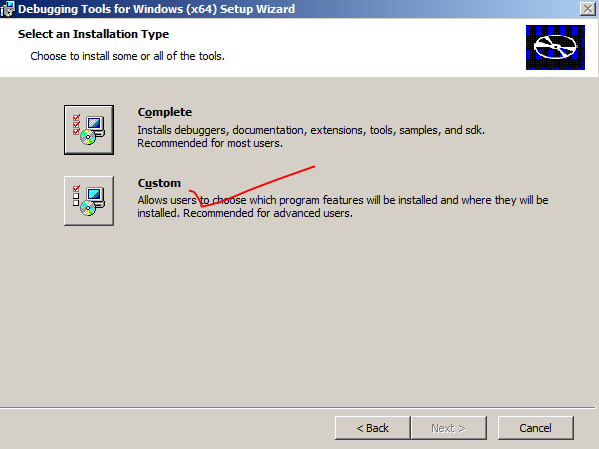
5. Now we need to extract the msi, so we just say install the msi and when shows installation option, click on custom and click next..


6. Click browse and change path to c:\debug and create a folder call debuggers_x64 and point to that… click next… it basically extracts…


7. Follow the same steps and extract dbg_x86.msi, when done you will see 2 folders..


8. So you got the debug tools for  x86/x64 machines.

9. Now that we got debugging tools let get the Symbols..
  
Windows 2008 R2 SP1:
  
Windows 2003 x86 with SP2:


For anything else use the below link and download it…

Just click the msi and extract to specific location.. Like example below
 
10. Now share the debug folder so that you can use the symbols from anywhere…

11.
Now we know what we need, will show you how to start your first debug..

Before you start thinking to debug, you need to know what Operating system and what architecture Version 64 bit/32bit you are going to debug?

If the memory.dmp file is too big then its better off doing it on the Server or you want to do it from some other server...for both the process steps are the same

12. So copy the required debugger for the Operating system and click on WINDBG.exe


Note: you need to debug a 64bit dump in 64 bit debugger and vice versa…

13.   Click File and click on Symbol File path..


14.   Depending on what OS bit version, you need to put that Symbol file path and click OK

SRV*\\Servername\debug\Symbols_2003x86*http://msdl.microsoft.com/download/symbols   - x86
SRV*\\Servername\debug\Symbols_2008x64sp1*http://msdl.microsoft.com/download/symbols  -x64 windows 2008R2 sp1


15.   Click File and click on Open Crash dump and locate the path of kernel dump file (ex. C:\windows\Memory.dmp) and click yes
See Loading symbols if it can’t load symbols it will say that no symbols was loaded…

Note: you see 2 Error because this symbols will not have symbols for 3 rd party drivers like Symantec ..


16.   All you have to do is click on !analyze –V and wait.. .. when done scroll all the way down and look for something like below ….


You just finished  first level debugging.. there is more to it.. and this is the starting process.. so go start debugging…


Monday, October 8, 2012

Part 3- 4 NODE MULTI-SITE DISASTER,DYNAMIC QUORUM


In Part 3 of this 4- Node Multi-Site clustering series I will go over various Disaster recovery scenarios


Powershell cmdlet to verify NODE WEIGHT:


CLUSTER TO BE ONLINE : 3 OUT OF 5 NODE WEIGHT.

COMBINED NODE WEIGHT = 5 (fooprimary+foosecondary+drprimary+drsecondary+quorum)

That being said we can lose 2 Nodes at a time before cluster goes down.


MULTI-SITE SCENARIO:


  1. You want cluster to be online on DR Site only when all the Server in Primary site is down.

This is possible by settings the Preferred owner option in properties of the cluster name


so by settings this preferred owners option what would happen is as along we have any 1 server online of the required 3 Node weight from Primary site, SQL resources will be residing only on either FOOPRIMARY OR FOOSECONDARY NODE.
DRPRIMARY/DRSECONDARY NODE will kick inn only when all the Nodes in primary site is down.

  1. Fail-back option :


Let assume a scenario if both Nodes on Primary Site fails and resources are in Secondary site.
Now if a Node in Primary site comes online, how you want the resources to be handled.

Option :

  1. Prevent fail-back: This settings requires manually intervention for moving the resources to Primary site
  2. All fail-back: Either immediately or schedule a time. If Primary Site comes online, what you want to do , immediately move the resource to Primary Site or schedule at a Particular time.

The recommended option is “Prevent fail-back  in MULTI-SITE , because after the Primary site is online you want to test make sure site is all stable before moving the resources.


DISASTOR SCENARIO CLUSTER ONLINE


DRSECONDARY NODE DOWN:


Cluster : Total Node weight is 4 so cluster will be online.


Cluster: Total Node weight is 2 so the Cluster is down.


Now to bring the cluster online we need to force the cluster without quorum and then add the other nodes in prevent quorum option and recreate quorum.

This where if you have DYNAMIC QUORUM enabled will reconfigure the quorum on the fly and will keep the cluster working even if only 1 Node is online.

HOW TO ENABLE: Please check my Part 1 of this series in the section where I configure quorum.


DYNAMIC QUORUM

Note: http://technet.microsoft.com/en-us/library/jj612870.aspx, highly recommend going through the link which explains in deep.
So Dynamic Quorum will work only
  1. The cluster should have achieved the quorum meaning there should already be a quorum configured before a Node goes down.
  2. Nodes should fail sequentially. If couple of Nodes fail simultaneously , then Dynamic quorum will not recalculate the vote, instead Nodes will regroup with remain Nodes and re-asses if Quorum can be configured and then dynamic quorum will kick inn for any more Node failure.


Dynamic Quorum is enabled by default. In short what is does is on the fly it recalculates the online Nodes and configure the quorum accordingly to keep the cluster online.


Let see the DYNAMIC QUORUM in action


DISASTER SCENARIO 1: DRSECONDARY down


Dynamic weight for DRSECONDARY is 0. So the Dynamic quorum kick's inn...
As the Total Node weight is 4 with file share the cluster in up and running.

DISASTER SCENARIO 2: DRPRIMARY,.DRSECONDARY down


Total weight is 3 with File share so the cluster is working.

DISASTER SCENARIO 3: FOOSECONDARY,.DRPRIMARY,.DRSECONDARY down

Note: I took he 3 node sequentially down.


Note: I have setup a continues ping to SQL CLUSTER NAME FOOMULTISQL to see when 3 nodes goes down.


Note: Did not see a single packet loss...


So to keep cluster we need 3 votes, so Dynamic quorum kicked inn and reconfigured the votes on the fly to keep the cluster working.( 2 Node weight + 1 File share witness)


DISASTER SCENARIO 4: FOOSECONDARY,.DRPRIMARY,.DRSECONDARY down +
FILE SHARE quorum SITE down


During this scenario cluster fails because there is no Dynamic Weight for File share witness therefore dynamic quorum is not calculated, majority of 2 is 2 therefore the cluster goes down..


More information check this very nice article:


Earlier FOR the same scenario without Dynamic weight we need to have 3 Nodes weight all the time, but with new Dynamic Weight configuration we can have either 2 Nodes or 1 Node and 1 File share online and still we can have the cluster up and running.


STEPS TO BRING CLUSTER ONLINE FOR DISASTER SCENARIO 4 :


  1. Investigate why quorum share couldn't be brought online before you perform the next step
  2. Forcing the cluster to start on the last Node online. The cluster will basically use the copy of the cluster configuration and replicate to other noes when it comes online.
    Net start clussvc /fq or start-clusternode -fixqorum


Note: We had dynamic quorum enabled, so when we forced started the quorum, It reconfigured the quorum and brought the cluster online. If no dynamic quorum enabled then the cluster would have started in force cluster mode and any node we add next needs to be added in prevent quorum mode to prevent the remaining nodes from forming a split cluster .
Now we keep adding back the Nodes and file


    1. Lets bring foosecondary online...


As soon as Cluster saw the other node coming online, Cluster service on this server was started with prevent quorum mode and made to join the existing cluster. Now we see a warning that Node and File share Majority is in failed state.

Note: If at this point a Node fails then the whole cluster will go down, because majority of 2 is 2 .

Microsoft doesn't recommend Node majority quorum model for Mufti-site clustering, if configured on 4 Node cluster I found out that the cluster is online even if 3 Nodes fails.


Dynamic Quorum configuration I think is a welcome option in Windows 2012 .