Saturday, August 5, 2017

Cloud - what i understood- System Admin what we need to look at????

Good day All,

Welcome back!!! i started to spend time look at Cloud so thought to share what i understood Cloud and as a System Admin where we will fall and what we need to look at.

This is how i think Cloud evolved

We had our own data centers : ex for lay man terms its like your own backyard in your independent house.

Adv:
1. Full control
2. Very felixable
3.You own your own equipment

Dis:
1. Lot of resource like money,current,security etc..
2. Lot of investment

Next came is third party data centers:

Adv:
1. No more my head ache for security, resource, space, electricity etc
2.You own your own equipment
3. total privacy to you allocated space.

Dis:
1. Away from your site
2. No major control
3. Lot of tenants

well for a lay man i would say a Apartment in big complex with lot of other tenants living.

Next came is third party data-centers with fully furnished:

What that would mean is you don't bring anything we will take care of every thing

Adv:
1. No hassles
2. Nothing to own or keeping track of equipment's

Dis:
1. Not enough customization. Let's say you requirement is to have a single Server in 1 GB of RAM and 20 GB harddisk but as they have Servers with stand capacity you need to pay what ever it is even though its over provisioned.

With Virtualization playing a key role thirdy party data-centers started to think if we are going to give Client fully furnished kind of Apartment why not customize it according to there needs..

Lets say 1 need 1 server 1GB RAM great here you go.. tomorrow i come i tell same server i need to add couple of more memory for sometime and then i don't need it .. well that can be done..

So data-centers started to stack lot high hardware with Virtualization and they started to provision any kind of requirement to end users across the globe.


So any cloud provider if he able to fulfill the above criteria then i would they say they are providing Services in cloud

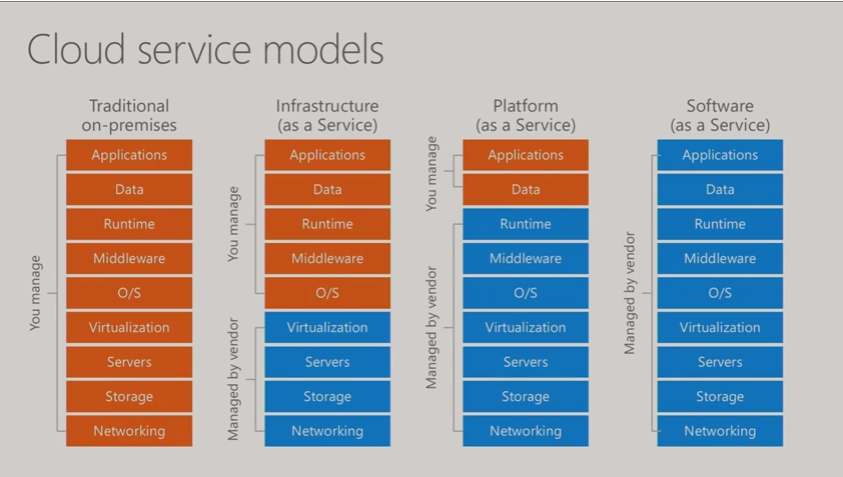
Types of Cloud:


Examples of each Cloud Services:
1. SAAS : Hotmail,Gmail.Office365

2. PAAS: example would be let says a developer needs a Server for sometime and he says he needs IIS and SQL database with Windows 2012 OS installed.So we can bundle all these 3 things and create as VM and give to developer.He doesn't need to know how to request for a VM,how to get OS,how to install all the software etc.. all he can do now is to start work and stop worrying about procurement.

3. IAAS: this is where we has a System Administrators come into picture when users say that i need a Virtual Machine and i need full control of it.

So as a System Admin you will feel Cloud as a remote data center and using the tools like Vi client,Vcenter,Hyper V we connect and Provision Servers the same way we will have to use cloud tools to create Virtual machines and connecting would like how we do remote data-centers through VPN same concept nothing changes,only thing is that we are responsible for hardware monitoring, hardware issues now but in cloud that part is no more our responsibility and also the underlying concept if Virtualization so hardware failures you will have Virtual machines getting seamless migrating to another host so you would hard see any hardware issues .


If you System Admins its very important that we understand what is Cloud how this is going to change our support models. I am not saying this would wipe out small data-centers but this will like lets say when Virtualization came it brought lot of benefits and people started to implement so Cloud is going to be the same way it has benefits and companies will look into cloud so we need to start understand where we fall and start gathering which cloud provides give what Services and what benefits they bring along so that we are prepared when been asked to.

I am not a cloud expert just started to play around so sharing what i understood to others so that this article may be a stepping stone for System Admins to do a deep dive.


Hopefully this helps someone until next one you all have a good day!!!!!!!!!!!!!!!!!!!!!!!!!

Wednesday, August 2, 2017

Schedule Task in Citrix

Good day All,

Welcome back!!!! recently we had a request to add schedule task in Citrix and request was  that user should see only the schedule task he is authorized to execute.

Following Steps was performed:

1. Schedule task was published in the Citrix
2. As we didn't want to load balance Schedule task we made sure only 1 server is published
3. Now go to C:\windows\System32\tasks, search for the schedule job file and go to properties and under security add the user who would need access and give him full permission.
4.Asked the user to test it.


well this was easy, hopefully this helps someone until next one you all have a good day!!!!!!!!!!!!!!

Tuesday, July 25, 2017

Windows 2012 - NO RDP

Good day All,

Welcome back!!!
Recently we had Windows 2012 which was online in Console but unable to RDP to Server and we started to see this below error in system logs

Event ID:      1057

Description:
The RD Session Host Server has failed to create a new self signed certificate to be used for RD Session Host Server authentication on SSL connections. The relevant status code was Keyset as registered is invalid.

Troubleshooting steps:

1. Server was rebooted
2.Tried stopping and resetting NIC
3.Tried adding new NIC
4.recreated RDP-TCP Listener

Solution:

1. Please got to folder C:\ProgramData\Microsoft\Crypto\RSA
2. Rename Folder Machinekeys to something as machinekeys_old
3.Restart the Remote desktop Service

After Service restart we able to RDP to Server.

Now after fixing RDP what we encountered was IISAdmin Service wouldn't start.So we tried different articles suggesting that we give permissions nothing worked.. so on further investigation we found that IISADMIN is looking for file which starts with C23 so we went back to old machine key folder then copied all the C23 files and copied to new machine key folder then IISAdmin service started to work.

Well we thought that's it. then Application team which had Sharepoint complained that Application pool related to Sharepoint that is Security Token Service App pool would start and then would fail.
We did some search with no luck so we just said lets replace the old machine key folder so we went ahead and replaced the old machine key folder and everything started to work with sharepoint and i know we lost RDP to Server..
On further investigation we found that RDP Service is creating a file something like this “f686aace6942fb7f7…” so we deleted this file in exsisting machine key folder and copied it from the new machine key folder which had RDP working.
So now RDP and all IIS Application was working fine.....

If anyone looking for what machinekeys folder contains well google would be a place to start..

Also for some reason this didn't work for me, may be it would help someone so sharing this as well...

https://blogs.technet.microsoft.com/askperf/2014/10/22/rdp-fails-with-event-id-1058-event-36870-with-remote-desktop-session-host-certificate-ssl-communication/


Hopefully this helps someone ,until next one everyone have good day!!!!!!!!!!!!!!!!

Tuesday, June 20, 2017

Windows 2016 Fail-over Cluster - what's in the box

Good day All,

Welcome back!!! i was listening to Microsoft ignite recording on great features in the box coming in Windows 2016 Fail over cluster so i just captured it for people who don't have time to watch video but would like to keep apprised of what is going to come, here is the list

Note: All the points are captured from this video, if anyone interested i highly encourage to go over it

1.      Storage QoS added in Windows 2016

2.      Shared VHDX Integration
Guest Clusters can now resize Shared VHDX without downtime
Gust Clusters can now have Shared VHDX protected by Hyper-V
Replica for disaster recovery
Guest Clusters can now have host level backups in addition to guest level backups of Shared VHDX

3.       Evolving CSV Cache

4.       Diagnostic Improvements
Additional Validation tests to catch Active Directory configuration issues
Improved Network Name resource logging
Improved Validation times for both Storage and non-storage tests
Less noise logged to the cluster log to prevent wrapping
Additional data logged to cluster.log, header and mini-dump of log level 5 verbosity

5.       Reducing Dump Sizes
Active Memory Dump captures what is important with smaller file sizes
new alternative to a complete (Full) memory dump
Excludes memory allocated to virtual machines
Simplified debugging of Hyper-V systems with large amounts of RAM

6.      Zero Downtime debugging
Clustering will capture live dumps on failures
Live dumps are a mechanism to generate a memory dump for debugging without crashing the system
Capture debugging data without having to bug check nodes
Debugging data without downtime
Capture dumps across multiple machines in parallel to enable debugging the distributed system
Integrated with Windows Error Reporting to snapshot logs

7.       Thunderbolt Networking - for 2 Node cluster now you can use USB cable and plugin it and IP6 is auto configured, no configuration is required.

8.       VM Compute Resiliency
VMs continue to run even when a node falls out of cluster membership in the past if a node fails it will drain all the VM's on the node and restart on the another node in cluster so in 2016 cluster resiliency to transient failures like spanning tree protocol , network hiccups . or I/O failure on the SAN and it comes up

9.       VM Storage Resiliency
VM Stack quickly notified on failure
VM moved to Paused Critical state and will wait for storage to recover
Session state retained on recovery

10.   Quarantine of Flapping Nodes
Unhealthy nodes are quarantined and are no longer allowed to join the cluster
Prevents flapping nodes from negatively effecting the other nodes and ther overall cluster
Node is quarantined if it ungracefully leaves the cluster 3 times within an hour
VM's are gracefully live migrated once Node is quarantined
Nodes prevented from joining the cluster for 2 hours

11.   Simplified SMB Multi-Channel

12.   VM Start Ordering Improvements

13.   Domain ‘less  Workgroup Servers as Cluster

14.   Multi-domain Cluster

15.   Cloud Witness
      Stretched clusters without a 3rd site
Clusters without shared storage

16.   Site Awareness
Groups failover to a node within the same site, before failing to a node in a different site
VMs follow storage and are placed in same site where their associated storage resides
VM's will begin live migrating to the same site as their associated CSV after 1 minute

17.   VM Load Balancing
Earlier as part of VMM not in Box
Identifies idle nodes in a cluster and distributes VM's to utilize them
Utilization determined by VM memory & CPU  pressure

18.   Seamless Upgrades
Rolling upgrade from Windows 2012 R2 to Win 2016 that is mixed mode clusters like Windows 2012, Windows 2016 in a same cluster eccept few features will be turned off.
In-place upgrades of cluster nodes now possible

19.   End to End Multi-Site Clusters
End to end Windows Server disaster recovery solution
Volume level software replication between storage of any type workload
Synchronous replication

20.   Clusters without shared storage using Storage Spaces Direct.
DAS storage replicated across all nodes clusters with no shared storage!
Hyper converged - VM's on Space Direct Cluster


I don take any credit for it just captured the details for cluster fan's , hopefully it will be useful for someone until next one you all have good day!!!!!!!!!!!!!!!!!!!!!

Thursday, April 6, 2017

MSTSC - need to see RDP screen and punching username and password

Good day All,

Welcome back!!! recently i was pulled to a little issue for RDP and found it interesting so thought to share to all.

The requirement was user had a JumpServer in TestEU domain and trying to RDP to a Server in TestUS domain.

So after connecting to TestEU domain when they launch mstsc and punch in the username and password for TestUS domain, it will take sometime and through error saying "Directory Logon Failure: bad credentials supplied"

1. Firewall ports was verified nothing blocking
2.Telnet on port 3389 from TestEU domain was working to a Server in TestUS domain

This is when i was called to check, it took time to understand why they doing double hop and  i was able to tell them that this error is in RDP Client.

As we all know when RDP client version before 7.0  you will see RDP desktop first and then ask for credentials but after 7.0 as you soon as you hit connect it will ask for username and password and it will do the authentication process and it will take right you in the Server.

So what was happening when user is trying from a Jump Server in TestEU, even though he explicit provides TestUS domain name ,username and password the username and password are was checked against the current domain and getting that bad credentials error.

Why it does please google it because of single sign-on and registry it keeps validating the user name and password in current domain.

Work around:

1. Start, run , type mstsc and click options and remove any ip under Computer
2. In mstsc  under connection settings click saveas on the desktop and it will get saved as default.rdp and close the mstsc
3. Now open a notepad and click open , select all files and open default.rdp and click ok
4. Scroll all the way down and add the following 2 below in the notepad and save it.
enablecredsspsupport:i:0
authentication level:i:0
5. Now asked them to double click the default.rdp on the desktop, type in the ip and see , does it open a RDP screen of windows 2012 to punch in domain name,user name and password.

Note: If you have a RDP client version 7 and below you would have never encountered this error because when you click mstsc and hit connect it will open a RDP session allowing to punch in username and password.

Hopefully this will help some and until next one you all have a good day!!!!!!!!!!!!!!!!!!!!!!!!!!!!!!

Blade NIC showing unplugged

Good day All,

Welcome back!!!  Couple of weeks ago we had a interesting incident so thought of sharing to all so that it helps someone.
We got a alert ticket and one of the Production Server lost both Production Team NIC's on a blade and was unreachable , strange is we had NIC's for Backup and Management both are up and online.

So troubleshooting steps we performed but issue didn't get resolved:

1.We updated to latest drivers didn't work
2.Replaced NICs didn't work
3.Replaced mother board didn't work
4.Removed blade and put in next slot didn't work
5.Removed blade and put in second half of slot(bay 14) that didn't work too
6. We tried created new profile nope that didn't help


Solution:


 We created a internal only network and then assigned 1 NIC and then on  other Blade Server we assigned a NIC to same Internal network , assigned a 192.168.1.1 and 1.2 IP and pinged both NIC's it started to work.
Now we know that its not NIC issue as when we configured internally network its pinging between both blades.

So finally what we decided was to drop the existing VLAN and then just recreated a same VLAN,...Vola.. issue got resolved.
We reached out to Level 2 HPTS guys but they had no idea why something would like fix the issue.
Hopefully this will help someone, until next one you all have good day!!!!!!!!!!!!


Virtual Connect upgrade - Interactive Mode

Good day All,

Welcome back!!! quite busy these days so after a very long time started to write.
We have completed upgrading Virtual Connect to 4.45 so thought of sharing the process and also issues we encountered along the way

Also i have seen people getting confused on what order to follow, we have been doing this for quite sometime and has been very successful

1.Apply ilo Firmware for all the Blades in the enclosure
2.Apply Firmware update for the Physical Blades and if its Windows OS\ESXi apply all the drivers/Firmware as well
3.Apply On-board Administrator Firmware update
4. Last Apply the Virtual Connect Firmware update

Before you do anything backup the Configuration :


Download VCSU Utility:
http://h20564.www2.hpe.com/hpsc/swd/public/detail?swItemId=MTX_5e16cbb76d9e46e891ca04048d

VCSU User Guide:

https://h20566.www2.hpe.com/hpsc/doc/public/display?sp4ts.oid=4144084&docId=emr_na-c04567803&docLocale=en_US

Virtual Connect Firmware download:

http://h20564.www2.hpe.com/hpsc/swd/public/detail?swItemId=MTX_3adcc3c4275f460c8d97cad17e

After you install VCSU, Navigate in start menu and open Virtual Connect Support Utility - Interactive as seen in below screen

Note: If any VC version is less than 4.01 then you need to update to 4.01 first and then to required firmware in our case 4.45

First Step is to run Health Check Report: Open VCSU interactive mode

Please enter action ("help" for list): healthcheck
Please enter Onboard Administrator IP Address: OA Primary IP
Please enter Onboard Administrator Username: Administrator
Please enter Onboard Administrator Password: *************

The target configuration is integrated into a Virtual Connect Domain. Please enter the Virtual Connect Domain administrative user credentials to continue.

User Name: Administrator
Password: *************

A details report will be generated with complete VC Current Firmware list and any issues will be reported.
Make sure to go over it before you start the upgrade steps below

After verifying all at 4.01 then run the steps below to update the Firmware from 4.01 to 4.45
  •  Please enter action ("help" for list): update
  •  Please enter Onboard Administrator IP Address: OA Primary IP
  •    Please enter Onboard Administrator Username: *************
  •    Please enter Onboard Administrator Password: *************
  •    Please enter firmware package location: C:\vc\vcfwall445.bin
  •     Please enter Configuration backup password (Optional):
  •     Please enter Force Update options if any (eg: version,health): health
  •     Please enter VC-Enet module activation order if any (eg: parallel or odd-even or serial or manual. Default: odd-even):hit enter
  •    Please enter VC-FC module activation order if any (eg: parallel or odd-even or serial or manual. Default: serial):hit enter
  •    Please enter the time (in minutes) to wait between activating or rebooting VC-Enet modules (max 60 mins. Default: 0 mins):hit enter
  •    Please enter the time (in minutes) to wait between activating or rebooting VC-FC modules (max 60 mins. Default: 0 mins):hit enter
  •    The target configuration is integrated into a Virtual Connect Domain. Please enter the Virtual Connect Domain administrative user credentials to continue
  •    User Name: ************
  •  Password: *************
After like 40-45 mints you will see notification showing all your VC Modules updated with version you needed.

Issues encountered:

1, if you have critical database or application which can't withstand at-least 10-15 packet drops then make sure the team is aware, we have seen case where there was like at=least 15 packet drops when upgrade
2.Linux Blades if running in older versions of NIC drivers we have see loosing network connection and had to be rebooted
3.If you have ESXi host and VM's running, if NIC's are configured like Active/Standby then when upgrade you will see packet drops

Hopefully this will help someone and until next one all have a good day!!!!!!!!!!!!!!!!