Tuesday, June 30, 2015

Task Scheduler - Logon failure when you try to create a TASK

Good day All,

I posted this fix sometime long back but still i see people getting struck and do all kind of things when they see the below error on Windows 2008 and Window 2012 when you try to create a Schedule Task

Windows 2008:

 Windows 2012:


The reason is because more security feature was added not to allow storage of passwords and credentials for network authentication .. how is it related to creating a schedule ..i will let you guys check it on Technet site..

So to fix this issue you need to Disable the setting in Local Security Policy as by default its Enabled. Please note changing the setting doesn't need any reboot or outage.


Hope this helps someone.. till next time all have a good day!!!

Wednesday, June 10, 2015

WINDBG for WINDOWS 2012/2012R2

Good day All,

I promised myself sometime back that will try to do lot of Post, but lately so much swamped never get sometime to draft it.. well always a excuse right :)

We Started to added lot of Windows 2012 R2 in our environment and one of the Server crashed with blue dump.. SoI  just made my Windbg files to carry around on my memory stick so i thought will share the steps you should do

1. Search for Windows 8.1 SDK or click here
2. You need to click Install and download

3.Click on sdksetup,exe which got downloaded. Please note you will need Internet access, this is not a standalone version of 81. SDK

4. Click on Download the Windows Software Development Kit for Windows 8.1 for installation on a separate computer and make a note Download Path and Click Next


5. Click No and Click Next
6. Un-check everything except Debugging Tools For Windows and click download button


Note: If anyone wants Windows Performance Analyzer/Recorder you can have it checked.

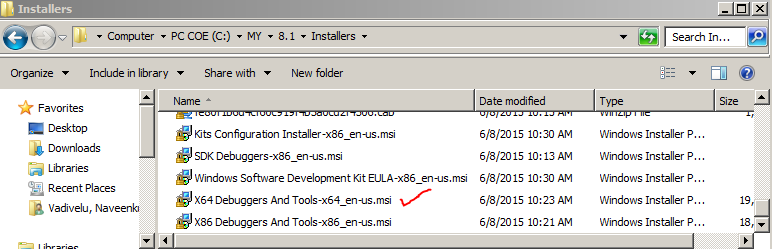
7.Browse to the download location , in my case C:\MY\8.1\Installers, in-case you  missed to make a note of download path then here is the default download path location
C:\Users\vadivelu\Downloads\Windows Kits\8.1\StandaloneSDK


8. Browse to the location and copy the file  "X64 Debuggers And Tools-x64_en-us.msi" on any OS version machine listed below.Just make sure that to uninstall any OLD debugging tools if present.

Note: this version of windbg can be used for Windows 7/8/81./2008/2008R2/2012/2012R2

9. Now Just double click the MSI file and it will just show progress bar and in 2 mints it will disappear.. don't worry nothing for us to configure, it just installed the debugger in the machine..


10. Browse to the below location and you will see something like this C:\Program Files\Windows Kits\8.1\Debuggers
11. Well that's it the standalone version of Windbg is ready.. just copy the x64 Folder and you can carry along on your memory stick or copy on to any Server and start debugging

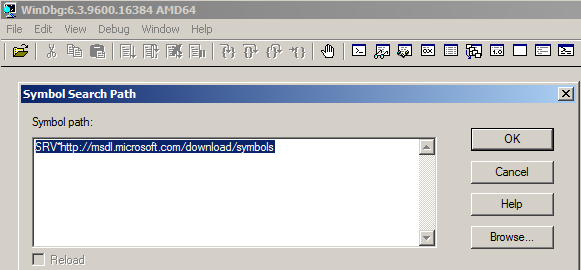
12. Just a note don't forget to set your Symbol search path before debugging and also you should make sure internet is working or else Symbol's will not load

SRV*http://msdl.microsoft.com/download/symbols

13. If you are one of those guys like me, don't want to go internet or in corporate environment you have no access to internet then just carry a copy of symbols by clicking here


14. Download and extract to some folder and just point your Symbols Search path to local drive something like this
SRV*C:\Symbols_x64*http://msdl.microsoft.com/download/symbols

15. If you are one of those guys you have a dedicated Server for debugging and don't want to type the Symbol Search path all the time then you can do something like this, open a command prompt and type as below for one time and you are done..After now anytime you open Windbg or even Process Explorer Symbol search path is all Set

setx /M _NT_SYMBOL_PATH SRV*C:\Symbols_x64*http://msdl.microsoft.com/download/symbols

16. If you have dedicated Symbols Server where you download and share it , then you can set the Symbol search path as below something like this ...

setx /M _NT_SYMBOL_PATH SRV*\\Servername\foler*http://msdl.microsoft.com/download/symbols


We come to end now so till next time all have good day!!!


Wednesday, March 11, 2015

Different OS Versions upgrade Options

Good day All,

We started to plan upgrading lot of our Windows 2008\2012 Servers to Windows 2012 R2 and was wondering what can be upgraded.. so i made a little chart so that it can be handy for me and to all...


Hope this helps someone!!! 

VIRTUAL CONNECT DOMAIN BACKUP AND OA BACKUP FOR c7000

Good day All,

Today i will cover how to backup Virtual Connect Manager domain and OA if ever have to do it.

1. VC domain - couple of mouse clicks and you are done and the picture below explains it all..


2. On-board Administrator Backup/Restore:

Backup:
1. Login to Active OA
2.Click on Enclosure Settings,Configuration Scripts..
3.Click SHOW CONFIG and it will run the script and ask you save it


4.Always run SHOW ALL too that will give all the Firmware and IP details handy

Restore:
1. Login to Active OA
2.Click on the Enclosure Settings, Configuration Scripts..
3.Click File and Browse to the Configuration Script location you saved and click Upload.


Hope this helps someone!!!!


Tuesday, March 10, 2015

NETWORK UNPLUGGED ON BLADE 460G7

Good day All,

Last couple of weeks has been extremely busy couldn't share much.. promised to myself saying to do at-least 2-3 post, let see how it goes..

Well the issue i am going to share has went for like 3 weeks before we buried to bed.
Ok this all started on a Blade in C7000 with 3 NIC's showing unplugged..
Initial Troubleshooting steps we performed still the issue persisited are
1. Reset the blade in OA
2. Re seating the blade Physically
3.Firmware Upgrade for NIC's
4.Motherboard replacement

After all the initial troubleshooting failing we decided to move to next level that is replace Virtual Connect Module.. As the NIC which was failing was going through one VC module 2 we thought we will replace that and give it a try.. Before we went to Business to get downtime, one more alert popped up and this time one more Server has same issue but this time the traffic is going through the other VC Module which is 1 in our case.

So like weeks of discussing with Vendor and internally we came up with the below plan

1. VC Domain and OA Backup
2. Reset the VC Modules
3. Replacing the VC Modules.. and for every one benefit replacing VC Module is not that easy..
Please find the link which will be useful
http://h20564.www2.hp.com/hpsc/doc/public/display?docId=mmr_kc-0115081
As we had to replace 2 VC Modules we had to get 2 Temp IP's and 2 Free slots in the c7000 enclosure to Flash the VC Modules to 4.20 and as our Frames was linked while using the vscu utility to update the Firmware you have to use -f option to force upgrade.
4. All the 3 steps fails last try was to replace Midplane.. and i already have post which i did, the challenges we faced to replace Midplane, click the Link and also more detail information on the vendor website

As it was our critical Server infrastructure we had to do lot of Pre-works to make sure we are all ready , like
1. Screen shots for all the Server profiles and VLAN Information
2. Shared up links
3.IP's etc..

So the big day came we anxiously started with our step which was to Reset the VC Modules..
Way to do it:

1. Please check which is the active VC Module( Incase you not aware , login to Virtual Connect Manager and click on Help and then click "About Virtual Connect Manager' it will list all the VC Modules listing which is Primary
2. Failover the VCM from Primary to Standby and reseat the VC Module
3.Failed over now Primary to Standby and reseat the VC Module
4. Guess what all the NIC's got connected and issue got resolved..

We are glad that we never had to do rest of the steps :)

Hope this helps someone and if anyone as question free to post it and glad to help!!!!


Tuesday, January 20, 2015

F5 load Balancer and IIS certificate issue

Good day All,

Today i will share with all F5 and IIS certificate issue i was pulled into sometime ago.. In-fact when the issue came to me i was said that all configuration on F5 as been set properly and certificate as been installed on IIS Web server but still the page is unavailable when the tried to access the Server  using https from external network.
Couple of questions i asked

1. is the certificate working properly internally and the answer was Yes
2.I asked what kind of offloading we have configured on F5, Client-side SSL or Server-side SSL and the answer was Server-side SSL
3.last question was if Server-side SSL, are we using 2 certificates 1 for F5 and 1 for IIS web server or we are installing 1 Certificate on F5, exporting and importing the same certificate with Private key on Web server and the answer was only 1 certificate.

for starters if you wondering what is Client-side and Server-side, please check this Manual of F5 it goes in depth on the same..

So i said please hold on and let me check something because i kind of know what is the issue? any guess from anyone? well here you go the answer see below? can you tell me what is missing?


If any one guessed don't see the Private Key then the answer is Yes.. there is no Private key for this certificate so all the traffic from F5 to IIS Web server was encrypted but IIS doesn't have the Private key to decrypt. Why we don't see the Private key, the possible reasons
As the certificate request was generated from F5 and when it receives the certificate it gets the certificate and Private key separately and F5 team passed the same certificate without Private Key to be applied on IIS not knowing Server would need Private key.

So how do we fix the issue well there is neat little tool call openSSL , simple download and install which basically merge Certificate and Private Key in a PFX format to be imported to IIS..


C:\OpenSSL-Win32\bin>openssl.exe pkcs12 -export -out name.pfx -inkey w.key -in w.
crt -name test
WARNING: can't open config file: /usr/local/ssl/openssl.cnf
Loading 'screen' into random state - done
Enter Export Password:
Verifying - Enter Export Password:


well the above command will create a PFX , so we re-imported the certificate to Certificate store and reapplied the certificate to IIS.


Hope this helps someone!!!!!!!!!!

Monday, January 12, 2015

The backup operation that started at ... has failed with following error code '2155347997' - SYSTEM STATE BACKUP- WINDOWS 2008

Good day All,

We started updating Firmware on lot of Physical Servers and as part of Pre-requisites we started taking System state backup's and lot of 2008 Severs system state backup was failing.
In-case you guys are wondering what we will do with system state backup? can we restore the Server back in case of disaster well, check this article i have posted, 2 Servers was successfully restored with the process in this link
After some search and couple of these blogs really helped so what really the issue is?
Well let me see i can put in simple and there are lot of blogs which tells in-depth if you google on enumeration errors.. so what basically happening while taking System state backup is Backup process is making sure that all the image paths for the Service is correct and in that process if it sees any invalid paths it stops the backup process with error code...

http://blogs.technet.com/b/askcore/archive/2010/06/18/ps-script-for-blog-enumeration-of-the-files-failed.aspx
http://h10025.www1.hp.com/ewfrf/wc/document?docname=c03921757&cc=ca&dlc=en&lc=es

So for starters download the Powershell script, enable Script execution in PS and run the PS script.. you will see output something like this..

     Service Name    :
     Service Caption :
     Registry key    :
     Value           :
     Reason          : The service path contains spaces, the whole path needs to be enclosed using double      quotes

The good part about the script is it tells what needs to be done so be cautious when changing something in registry .. below are the few things i have seen as errors..

1. The service path contains spaces, the whole path needs to be enclosed using double quotes
2.The service path contains a forward slash. Only paths containing an inverted slash are supported
3.The service path does not have a proper path format. Only paths beginning with [<Drive>]:\ format
are supported.
4.The service path contains invalid characters. Characters < > : " | ? cannot be used in a file path
5.Non-Existed Volume

Couple of things i have noticed
1. Cluster Servers, the server is active on one node and the respective Service is active on that node, you will see that Service warning failure in the PS script you run.. in that case we couldn't never fix it.. before we do activity we failed over the node took the system state backup and then proceeded with firmware update..
2. Warnings in the Script can be ignored
3. the service path contains a reparse point. Paths containing a reparse point are not supported - can be ignored too..

As I progress and if i encounter more backup failure errors will update this post.. 
Hope this helps someone!!!!