Saturday, January 23, 2016

iSCSI Target creation on Windows 2012 R2

Good day All,

Welcome back and this is going to be my first post this year.. I was not sure where to start and which topic and with Windows 2016 Technical Preview 4 out there it almost tempted me to try couple of topics like Hyperv Cluster moving from 2012 to 2016 a rolling upgrade with no downtime we can move VM's and lot more.. So today i was preparing my LAB and just build a DC, now the same DC will act as iSCSI Target Server for all my future testing so thought to share with all how to set it up,

Before i do just wanted to thank my Wife for Presenting me a brand new HP 15t 16 GB RAM laptop , now i have 2, 8 GB desktop and 1 Laptop with 16 GB so i can test most of the scenarios and post more topics which may help someone and help me too in learning.

Until before 2012 iSCSI Target was a add-on and now its been included in Roles and Features.. this helped all of us in Testing and playing lot with clustering and to present this Lun's to Vmware Farm as datastore.


I have added 3 disk , 2 disk of 100GB and 1 disk of 1 GB.
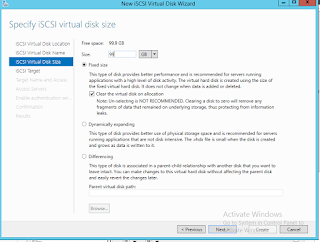
So i have selected the E drive of 100GB to create a Virtual disk which will be presented to Cluster Servers.

Friend;y name of Virtual disk

I took all the space for Virtual disk.
iSCSI Target is where lot of people get confused.This is just a Name where you want all you disk which are assigned to Particular client Servers.For example i need 2 99GB Luns and 1 1GB LUN for my 2 Node cluster so i create a Target name so that i can group all the 3 LUN's under the same Target .Tomorrow if you decide to create a new Cluster you can create a new Target and associate disk to that target so that you know which Virtual disk are associated to which Servers.
As this is first time i am creating the Target and named as FOOFS, as my 2 Node Clusters that will be accessing this LUNs are FOOFS1,FOOFS2.

Now we need to tell which Servers will access this Virtual disk, in my case as said it will be 2 Node cluster so i will need to add 2 Servers FOOFS1,FOOFS2.

After clicking add and you put in your First Cluster Name.

If you get the above error that means that you have not initialized your host iSCSI initiator in my case are FOOFS1 and FOOFS2 , so follow the below steps...

Please do that on both the nodes of the cluster.Now you come back and add both the nodes this time and it should get added with no errors.


if you need to add authentication do so, if not just leave blank and click Next.

I have added 1 Virtual disk of 99 GB , i need 1 more disk of 99GB and 1 GB disk for quorum so lets add them to same iSCSI Target FOOFS.
 
As you see below i have picked existing Target so that i can group all 3 LUNS .

i did the same for the last LUN and after done you will see something like this


So we have successfully created the disk required for 2 Node cluster.So lets add the disk to both the nodes.

On both Nodes you will need to do this


Note: Incase you don't see the LUNs on the host Servers, just go to Target Server which in my case is FOODC and do the below steps for  all LUN which is not visible
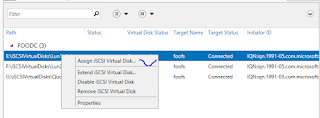


So we have successfully added the 3 LUN's to our 2 Node Cluster FOOFS1,FOOFS2.
Next article i will go over creating cluster and also how to create a Application share which can be used to store Virtual machine until then you all have a good day!!!


Hope this helps someone!!!!


Tuesday, December 22, 2015

Moving from one Domain to another for Windows 2003 Cluster - Lessons Learned

Good day All,

Welcome back!!!

Today i will go over challenges we had moving a 2003 Cluster from one domain to another.I know I know you guys would be wondering you still have Unsupported OS, well i guess we do and i may not be the only one in the world i guess :)
We are making progress, right now these Servers was in some other domain and we started doing consolidation and going to Windows 2012 AD, and eventually we will be moving to 2012 or may be 2016 Cluster who knows... but for now will share the lessons learned during the domain change.

Microsoft has a pretty good article our there and here is the Link.So please make to go over and do all the Policy changes believe me i tested my self in lab they Policy changes play a very key role.

Well reading the article you must be thing, hmm this is simple and pretty straight forward why do need another article, well remember Production Servers always never do smooth ride and we had our challenges which i wanted to share to you all

So let me list out..

1. Un-joining from old domain and rejoin to new Domin as per article shutting on passive nodes down and worked on first Active Node. Well unjoin went well, we updated the DNS for new domain in TCP/IP Properties and joined it, guess what we started to get this below error

The computer failed to join the domain. Please contact your domain
administrator and indicate that the computer failed to update the
dnshostname and/or servicePrincipalName (SPN) attritbute in its Active
directory computer account. Once the problem is resolved, you may join the
computer to the domain.


Not sure how how many of you know but when you try to join a domain a log file is setup in the Server c:\windows\Debug\ntsetup.log.
After review we found that Server was trying to join in some other Server in different location in domain but not to the nearest domain controller as specified in DNS1, DNS2 in TCP/IP Properties.
More strange was Computer object was getting created and just disappearing...
It was time to Pull in AD team and after checking couple of things, it was identified that when Unjoining the Server from domain, even though Server is getting unjoined witthout any errors but the Computer object in the trusted OLD domain was not getting deleted and that caused all the issue.
If anyone about to shout saying ID doesn't have domain Admin rights, we do :) but some thing to be investigated by AD team.

So the solution was pretty simple, unjoin from domain, delete the computer object from old domain wait for like 5-10 mints to replicated and then tried it and this time it was all ok

2. Moving on to 2nd issue,...  As i said above we are working on the Primary Active Node as per the Microsoft article..
After adding to new domain, we made all the Local Policy changes as per the Link above and changed the Cluster Service domain name and password and we started the cluster Service..
Well guess what cluster Service just timed out with System event log error 7031.

Now we got struck and started to reapply the Local Security Policy just in-case if anything got missed, nope that didn't help.
So i started to review the cluster logs i was seeing that when we start the cluster Service, Q(Quorum) drive was trying to come online and then going offline and shutting down all the cluster group resources and terminating the Cluster Service.

So first clue we identified was disk/LUN Issue. So to double check i ran the command

net start clussvc /fixquorum

guess what Cluster Service came online and when we checked Cluster Admin MMC, Cluster Name and Cluster IP was online and Q drive was in failed state.. and when check for other drives too those was failed... that was not good.

So i went to disk management and when observed i found that there was active LUN's with drive letters assigned and also same duplicate  LUN's was showing online as below... hmm then i thought that Multi-path issue and disk are showing twice in disk management.


So we reached out to Storage team and they told that for Multipath issue there is updated drivers and after applying and rebooting presto!!! Cluster Service came online with no issues.


3. So 3rd lesson we learned.. I don't think i mentioned before but its our windows 2003 SQL Active/Passive cluster and SQL was brought down and Services of SQL was put to manual too before starting this activity.So we asked the SQL team to change the SQL Service account domain name,account  and password and then started to bring the Service online, all SQL Service came online except the SQL Service account and it failed with this error

SQLServerAgent could not be started (reason: SQLServerAgent must be able to connect to SQLServer as SysAdmin, but '(Unknown)' is not a member of the SysAdmin role).

SQL Service in cluster started so it cant be permission issue so doing some search in one of blog they suggested to make sure the SQL Service account part of " Lock in memory" in local Security policy and reboot the Server.
Well after doing that SQL Service account came back online too with no issues.

Sorry my laptop crashed and couldn't go back to the same blog where it was suggested and thank them but i would like to thank them for the blog and also people like them is helping the community to fix issues.

After all ok on the first Node tested , we moved to 2nd Node and replicated every thing and all went fine with no issues.
Hopefully my lessons learned will help someone too!!!!

Special thanks to my buddy Prasanth who sticked around the issues along with me.

Till next one all have a good day!!!!!!!!!!!!!!!

Tuesday, November 3, 2015

Symantec Endpoint Protection creating Multiple instances on Citrix and Terminal Servers

Welcome Back!!!
We had issue where on Citrix Servers for every user when he opens a Application a instance of Symantec would open eating up lot of Memory on the background, something like this below


Colleague of mine had similar issue and they worked with vendor Symantec Endpoint and they suggested a registry key settings to fix the issue.

Prevent the process from starting by changing the registry value:

1. Click Start, Run and type “regedit” then click OK
2. Browse to the SMC key. In version of SEP older than 12.1 RU5, this is the same
location on 32- or 64-bit systems:
HKLM\SOFTWARE\Symantec\Symantec Endpoint Protection\SMC

In SEP 12.1.5 (12.1 RU5) and newer on 64-bit systems, LaunchSmcGui and most
other SMC keys and values have moved to Wow6432Node:
HKLM\SOFTWARE\Wow6432Node\Symantec\Symantec Endpoint Protection\SMC

3. Find the entry LaunchSmcGui and change it from DWORD 1 to DWORD 0 (add it if it
is not already present)

If you are unable to modify the listed registry keys, you can temporarily disable Tamper
Protection.

More info check this vendor website link

Hope this helps someone!!!

FAN making loud noise on DL 380p G8


Good day All,

Welcome back!!! We have a HP server in remote location which started to make loud noise..even though the Server was stable.

We opened a case with Vendor following troubleshooting steps was done

1. Asked us to update the Firmware drivers and we used June HP SPP
2. Still the same issue, so replace System Board same issue still no luck,
3.Suggested to upgrade to Oct HP SPP still same issue
4. We decided to come with 2 plans , replace again System Board,Fan if still issue then start pulling out the PCI cards each one at a time and test the Fan.

Well guess what after replacing the System Board the issue got fixed, now the big question is we did the same in Step 2 why it didn't fix the issue that time..
Vendor didn't have any answers but our thoughts is that usually System Board sit in warehouse for quite sometime and when then come they come with no update Firmware or drivers or it was not been tested before..

Hope this helps someone!!!!

Monday, November 2, 2015

Robocopy to copy 20 TB of data from NETAPP to Windows 2012R2 File Server cluster

Good day All,

Welcome back!!! one of my friend called me up the other day and he was saying that he needed help on Robocopy and guidance to move 30 TB of data from NETAPP to EMC Storgae,

Well i thought why are not do a blog on my experience and probably it will be helpful for someone.
Even though i was moving the data from NetApp to Windows 2012R2 File Server cluster the process should be the same.
Before i proceed the usually Cut over process and steps, lets dig little bit on what all attributes i used in order to achieve this.. this is my Robocopy.bat file.


ROBOCOPY /e /xj /ZB /r:2 /w:5 /LOG+:"C:\robo\Log.txt" /it /purge /copyall "\\Source IP\Source_Share" "\\Destiantion Server IP\destination_share"

@Echo Copying Complete
Pause


/E :: copy subdirectories, including Empty ones
/XJ :: eXclude Junction points. (normally included by default)
/ZB :: use restartable mode; if access denied use Backup mode
/R:n :: number of Retries on failed copies
/W:n :: Wait time between retries
/LOG+:file :: output status to LOG file
/IT :: Include Tweaked files
/PURGE :: delete dest files/dirs that no longer exist in source

/COPYALL :: COPY ALL file info

Important ones to look at the attribute and you should be aware
1. /ZB  is very important if source files\folders you don't have permission .. basically we telling that if no pemission too just treat as Backup mode and copy over to the destination location
2./PURGE : this one confuses lot of people , remember to make sure destination folders are empty.. if you have data it will be gone.So what this basically doing is replicating Source and Destination folders and anything not in Source will be removed .
3. /COPYALL : i will copy all the files and folders will the permissions in tact.

so this is how we did

1. Requested permission as Administrators on the Netapp filler
2.Work with business to identify how much of data we will move on weekly basis because this is huge data we looking and there is no way you can do 1 time cut-over
So we identified the root share folders and started setting up Robocopy.bat files with above line marked in yellow on the destination folder or any intermediate servers.
3. Now how do we move datacopy, if you have a dedicated link its better to use it.
4. Usually our change weekends starts on Saturday so we set up initial Sync to run over weekend ends before business starts on the Monday.
5. During the week we will do one or more sync so that during the final cut over we will have less data to cut over and less time.We will rename the log file so that it creates a new log file and not append the existing log file that way we don't have check though big log text file for skipped or errors
6. Finally on the day of cut over we  request all the users not to access the shares,do the final sync and do some testing to make sure all permission and everything are intact.

It took about 3-4 weeks to get through all the 20 TB data successfully with Zero loss of data.

Note: Windows 2012R2 File share cluster creation there are lot of articles on the internet if anyone is looking.

Hope this helps someone!!!


WINDBG saved my day one more time!!!!

Good day All,

Sorry its been a very busy couple of Months so started to get sometime so will catch up on couple of topics..

Last couple of days my laptop was acting up and when ever i tried to reboot the Laptop it will through a blue dump.. i thought it was one of thing and when retired again then same error so decided to fix it.

As Laptop was set to configure only Minidump i said to myself lets see if i can find anything in Mini dump if not then will set it for Kernal or Full dump.

Note; if any one wants to know what is difference in Mini,kernal and Full dump kindly google around there are tons of article about it.

So just loaded the windbg and loaded the Mini dump and ran the usual !analyze- v command.


As it couldn't load the Symbol to Module it showing the Module name as ntkrnlmp. If you see the Faulting Module it showing a driver called jpnrna6.

So either you click on that Faulting Module or type lmvm jpnrna6, it will show you more details on the driver.As this is third party driver there was no symbol associated to it was not loading the symbols and correct faulting drivers was not listing in the above !analyze command.


Now that we know the drivers location path, i checked the properties and found that its related to Juniper VPN client.
Searched on the vendor website found a updated drivers, uninstalled the existing VPN client and re-installed it and vola !!! issue got fixed.

So one more reason why little knowledge on windbg will help us do the initial troubleshooting.

Hope this helps someone!!!!

Thursday, August 20, 2015

Printer Settings could not be saved, Operation could not be completed!!!!!!!!!!!!!!!!!!!

Good day All,

Welcome Back!!!
Today i will share with all a incident which happened.. We had a request to change Printer settings like new IP and Name for a printer on a Windows 2008 Print Server.

So as usually we right clicked on the Printer, changed the name and went on to Add new Port, new IP and when we clicked Apply we started to see this error as below


After some troubleshooting we identified that it needs Windows Firewall to be enabled and running as by default we have Windows Firewall disabled on all Windows Servers. As soon as we enabled Windows Firewall we where able to Apply the settings.Why we need this to be enabled i will let you guys do some research....

Hope this helps someone, until next time you guys have a good day!!!!!!!!!!!!!!!!!!!!!!!!!!!