Wednesday, October 31, 2018

Migrating_Upgrading Physical Vcenter 5.5 to Virtual Vcenter 6.5

Good day All,

Welcome back!!!!

Recently we had a very hot request to upgrade VC from 5.5 U3 to 6.5 to support HP Gen 10 Blades in the farm as they dont support 5.5 U3.

As our VC was on a blade Windows 2008 R2 with SQL 2008 R2 we had to do some planning to get this accomplished.. so below are the steps we did..

Pre steps :

1. SQL Database backup
2. Full Server backup
3. Created a Windows 2012 R2 Server with same name kept it as workgroup Server in case P2V fails.


Note: We tried to do P2V but for some reason the P2V would fail at 95% and final sync didn't get completed, so we had a Backup plan and we went with it...

Steps performed during the cutover:

1, Unjoined the physical Server and it was power down.
2. New Virtual Machine with same name was added back to domain.
3. SQL 2008 R2 SP1 was installed
4.VC 5.5 U3 was installed
5. Validated VC was online and able to access
6.Took a snapshot and restored the SQL database backup we took from Physical Server.
7.Server was rebooted and then all the Service came back clean,
8.Connected to Server and all the existing Permissions,  Standard Switches,Distributed Switches, VLANs was all in tact.
9.After confirming everything as expected snapshot was deleted
10. As SQL 2008 was old the requirement got little changed and the request was to upgrade SQL to 2014, so we upgrade the SQL 2008R2 SP1, applied Sp2 and then upgraded to SQL 2014 as inplace upgrade.

11. Validated everything was intact and at this point took a snapshot before we proceeding to VC 6.5

12. VC was upgraded from 5.5 to 6.5 and everything was tested out.

13. Last step was to upgrade the Vc license file from 5.5 to 6.5 and apply it on the Server.

So must be wondering no issues at all ???  well any upgrades there will be suprises and below are few we had

1. Auto deploy 5.1 was registered and we had to unregister it..so follow the VMware KB 2041183
2.We had HPDP GRE plugin and we had error saying it will not be upgraded and new to reinstall
3.Last big surprise was we lost all the permissions and roles other things like Standard switches,Distributed switches, VLANS was intact.
So solution was to restore dbo.vpx_access as per the KB 2086548

this pretty much covers the steps, hopefully this helps someone and until next one you all have good day!!!!!!!!!!!!!!!!!!!!!!!!!!!!!!!!!!!!

Thursday, September 20, 2018

Windows 2012 showing formatted SAN disk as RAW Volumes

Good day All,

Welcome back!!!

Recently we build a new physical Gen 10 Server with Windows 2012 R2 and it was provisioned with couple of 2 TB of LUN's formatted as NTFS

As part of the build steps we completed all the Tools installation and as the Physical Server was a HP Server and our Firmware\Drivers Standard  is always N-1 we applied the March SPP.

Server was rebooted and handover to client for SQL Install.

When client started to install SQL he realized that couldn't access the LUN's and asked us to verify it.

So when we checked we saw couple of LUN's was showing RAW and couple was showing just fine as GPT NTFS formatted disk.

This became a puzzle and we reached out to SAN team and they confirmed that SAN LUN's are properly formatted and they don't see any issues.

At this point we thought may be there is some issue with the OS install so started to redo the OS intall and performed the whole 9 yard.

One thing we noticed is that OS was installed , wew verified LUN's it was all showing as NTFS and as soon as we ran March 2018 SPP and reboot few disk would change to RAW Luns.

We happy that we know that because we ran March SPP this is issue so we started to look into Setup logs what all components was installed.

In the logs saw a driver install for Storage fiber channel adapter so went ahead and reverted the drivers to Oct 2017 and issue got resolved and just to ensure this is the right driver .. we tried installing again the March one and same issue.

Now that we identified instead of keeping Oct driver we tried with June driver CP032880.exe and issue got resolved .

Hopefully this helps someone!!! until next one you all have good day!!!!!!!!!!!!!!!!!!!!!!!!!!!

Moving 14 TB Dynamic Disk from Windows 2003 to Windows 2012

Good day All,

Welcome back!!!


We had a scenario as part of phasing out Windows 2003 VM we wanted to build a new Windows 2012 Server. The only challenge was that this Windows 2003 had 14 TB of Dynamic disk ,

Couple of ideas was discussed

1. Get a new disk in GPT on Windows 2012 and move the 14 TB data using robocopy. Well looking at the data it looks scary on the integrity as the data was very critical.
2. Create a 14TB LUN on the Storage and move the data on the storage end, as multiple disk was provisioned from SAN, LUN to LUN copy was ruled out.
3. Restore the 14 GB LUN from Backup very time consuming and we didn't have long Window from business.


All the options looked very time consuming and integrity of so much data was challenge...

Finally this is what we did and i had no clue that this would have worked...

1. As this was a 2003 VM all the Volumes of the dynamic disk we moved to a big large datastore.
2.Made a note of the order the disk's for the VM
3. Built a new Windows 2012 VM
4. Detached the dynamic disk from Windows 2003 VM and attached to Windows 2012 VM in the same order
5. Powered on the Windows 2012

I have never did something like this before and my hope was only 50%..

Well to our surprise after booting up Windows 2012 recognized the disk as dynamic disk and all the 14 TB was intact ..

If anyone feels had a better idea please share it to me probably we can use it for any more of future migrations..

Hopefully this helps someone... until next one all Have a good day!!!!!!!!!!!!!!!!!!!!!!!!!!!!!

Tuesday, August 21, 2018

SQL Server, 16 GB Ram where did my memory go?

Good day All,

Welcome back!!!
I was pulled for a incident on  Server running SQL 2008,Windows 2008 Virtual Machine and having 16 GB memory was reporting 97% usage.

So first thing i did was reached out to SQL team to confirm what is the max memory set for the SQL and they confirmed that its was only 4 GB.
Well i pulled up Process explorer and started to look at the commit memory and on doing a rough calculations it was rounding off to like 12 GB and close to 4 GB of ram i couldn't count it for .

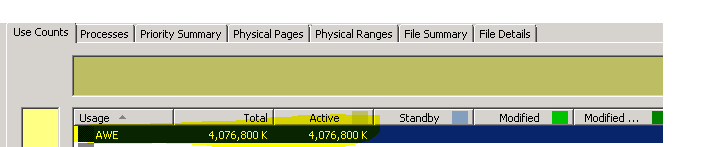
It was strange right, so i pulled out RAMMAP and when checked i could see that AWE was holding close to 4 GB of memory, that kind of struck why would this been doing.

Not sure if everyone is aware AWE,SQL 2008 has lot of issues so i kind of started to lean on SQL Server ...

As this was VM i started to looked around if VMTools was running fine and was there any alerts on the VM and didn't see much in there..
So when i checked the ESXi host i found that for some reason this host was max outing memory ,then i realized may be AWE as part of ballooning is holding the memory..

Quickly forced few VM's out of the host and in next 5- 10 mints i saw the memory 4 GB AWE was holding dropped down to in KB's and issue got resolved.

Hopefully this helps someone!!!
Until next one you all have good day!!!!!!!!!!!!

Who has logged into a Server

Good day All,
Welcome back!!!
Its been quite sometime i know so many things happened and lost track a bit because of the busy schedule.
Couple of interesting topic i worked on and want to share to all of us. So to start with i was asked as part of some investigation to  identify if during a particular time any user with an specific ID did a RDP Session to a Server and if so what ID they logged with it  what is the Server they trying to connect at that time.

I was knowing that we would need Security log to start with and hopefully its not over written and if RDP session is successful the logon type it will generate a event in Security log is LOGON Type 10.

So basically we are looking for 2 event ID's 4624 and 4648, below is the out of the 2..

Log Name:      Security
Source:        Microsoft-Windows-Security-Auditing
Date:          6/14/2018 10:29:37 AM MST
Event ID:      4624
Task Category: Logon
Level:         Information
Keywords:      Audit Success
User:          N/A
Computer:      Server name
Description:
An account was successfully logged on.

Subject:
                Security ID:                         SYSTEM
                Account Name:                 Computer account$
                Account Domain:                             domain name
                Logon ID:                             0x3E7 

Logon Type:                                       10
Impersonation Level:                     Impersonation
New Logon:

                Security ID:                         domain\user id
                Account Name:                 UserID
                Account Domain:                             Domain Name
                Logon ID:                             0x72EADD999
                Logon GUID:                      {60d466ce-e71e-0080-95ca-d00b008dbba6}

Process Information:
                Process ID:                          0x3468
                Process Name:                  C:\Windows\System32\winlogon.exe

Network Information:
                Workstation Name:        Host name
                Source Network Address:            Source IP it connecting from.
               Source Port:                       0

Detailed Authentication Information:

                Logon Process:                  User32
                Authentication Package:               Negotiate
                Transited Services:          -
               Package Name (NTLM only):       -
                Key Length:                        0

Below alert just confirms the successful logon and the ID he used when he initiated a RDP session

Log Name:      Security
Source:        Microsoft-Windows-Security-Auditing
Date:          6/14/2018 10:31:03 AM
Event ID:      4648
Task Category: Logon
Level:         Information
Keywords:      Audit Success
User:          N/A
Computer:      Host name
Description:
A logon was attempted using explicit credentials.

Subject:
                Security ID:                         domain\ID
                Account Name:                 ID
                Account Domain:                             domain name
                Logon ID:                             0x72EADD999
                Logon GUID:                      {60d466ce-e71e-0080-95ca-d00b008dbba6}

Account Whose Credentials Were Used:
                Account Name:                 ID used to RDP
                Account Domain:                             host name
                Logon GUID:                      {00000000-0000-0000-0000-000000000000}

Target Server:
                Target Server Name:     destination Computer
                Additional Information: destination computer

Process Information:
                Process ID:                          0x338
                Process Name:                  C:\Windows\System32\lsass.exe

this was easy so hopefully this helps someone!!!!!!!!!!!!!!!!
Until next one you all have a good day!!!!!!!!!!!!!!!!!!!!!!!!!!!!!!!!!!!!

Monday, May 7, 2018

Server wouldn't boot through Legacy after Gen 9 Oct SPP' 2017 - Restored in UEFI

Good day All,

Welcome back!!!!

We started to test Oct 2017 SPP on HP Gen 9 Windows 2012 R2 Servers  and as part of the testing we picked couple of Non-Production Servers to start the deploy.

As part of the prerequisites we did the following

1. System state back was taken and kept in the D drive
2. SPP was copied local to system. I know lot of people think why but sometimes we have seen NIC drivers disapper and if you have to deploy them you have to mount ISO etc to Server.

So online SPP was run and all the components got installed and after reboot Server didn't come online and after the Post Boot status we will get to below error and will just reboot again


Vendor case was opened and following steps was performed

1. Controller drivers was downgraded by booting through UEFI
2.System board replaced
3.Controller cards replaced
4. CPU replace
5. again a new system board replaced
6. New disk in empty slot and tried to boot from OS cd still not able to boot the Server in legacy mode

case was escalated to L3 and they had no idea why it was and writing of this post they still looking why the error.

As part of troubleshooting we had spent like a week on it, Client was getting hot on it and we decided that lets try UEFI and see if we an reinstall the OS

When we started to boot through UEFI , we had to format only the C drive accidentally whole drive was formatted and new C drive was created.
So we proceeded with OS install and Windows 2012 successfully got installed

At this point we had 2 choice
1. Install all the tools and handover the Server to Client saying Servers is down and we couldn't recovery and request for app install
2. Option 2 was to try the restore process, i had only 10% hope because System state taken was when the Server was in legacy mode so we are now in UEFI mode so will it work was the big question


Following steps was performed

1. As we lost both drivers, we requested our Backup team to restore both C and  D drive complete restore with permissions(Note: make sure not to reboot the Server at this point)
2. After restore was done we could see the system state backup

3. Luckily before we requested backup team to do a restored we had enabled the Windows backup client feature both GUI and Command line. The reason i said it because after C drive was restored the MMC showed corrupt error and we couldn't open any MMC.
At that point we thought we screwed :)

4. Well then remember we installed the Command tools as well so we started to try the command tool syntax

a. first step was to get the version date of the system state backup

wbadmin get versions -backupTarget:d:


b.  Following command was run to initiate the restore...

wbadmin start systemstaterecovery -version:08/25/2008-06:45 -backupTarget:D:

c. Accept to restore yes and the restore process started and completed successfully


5. After the system state restore was done, rebooted the Server and started to look at ILO session to see what would happen.
Server after the post, loading Windows and started to apply some changes and again it rebooted.

6. After the first reboot Windows started to load and we say a successful Windows login screen and after login everything was intact and all Applications came back clean with no errors.


Couldn't believe my eyes because not sure if anyone tested this kind of scenario in the past but this was first time for me that a backup taken in legacy mode we could restore the Server in UEFI Mode.

Always a learning lesson and hoping this will help someone too!!!!!!!!!!!!!!!!!!!!!!!!!!!!!!!!!!!!

 Until next one you all have good day!!!!!!!!!!!!!!!!!!!!!!!!!!!!!!!!!!!!!!
Wednesday, March 21, 2018

My First hand burn in the Cloud

Good day All,

Welcome back!!!!

I planned on doing couple of more series on system admin but unfortunately got sick for couple of days.
As part of demo i created a 2 Node Availability set with Scale out File Server on Windows Failover cluster with Storage space direct.
In order to create the demo i created 2 VM's with 2 SSD and was able to complete my demo.
Later that day i stopped all the VM's so that it gets allocated and my free credit was like 100$ left for next 14 days.
Suddenly got sick for couple of days and then i got a notification that my free subscription is disabled.
Went in there to verify what the heck happened and when i saw all my funds was gone and it went with over subscription of the amount so my account my disabled.


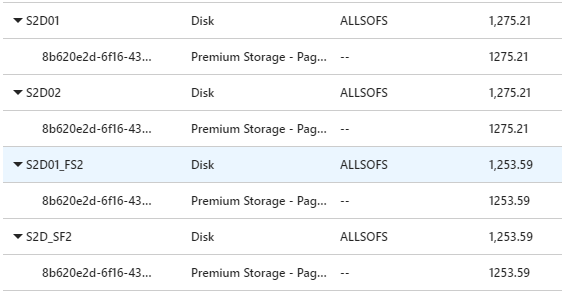
Well before i got sick i did stop the VM's and de-allocated it right? then what happened.. so of my planning screwed because i used 4 SSD which are premium disk for the demo and i forgot to remove them and that burnt all my free fund.


So people out there planning to demo in Azure ensure to save fund after you done playing de-allocate or remove everything no needed and keep as minimal as possible so that you dont end up cost on it.

Trying for another alternative to kick start my demo, so until next one you all have a good day!!!!!!!!!!!!!!!!!!!!!!!